Personalized Digital Greeting Cards: Make a Finished Card You Can Send
Make a personalized digital greeting card with a finished original example, a complete message, a simple drawing recipe and clear export-and-send steps.
A personalized digital greeting card is a finished picture containing your message, ready for the person to open. Choose one memory, give the words room, keep an editable copy and export the whole card as an image. Then send the image with a short note that explains why you made it.
Below is a complete original anniversary card you can use as a starting point, followed by a way to personalise and export it. The example is from fictional Casey to Jo. Its names, memories and illustration are invented; it is not a customer card or a photograph.
Jump to: The finished card · Make the words yours · Choose the file · Edit and export · Send it.
A finished card: “Every ordinary day, with you”
The design uses two mugs beneath a window, dark green lettering and a cream background. Its subject is ordinary time together. The larger heading carries the thought; the personal details sit underneath where they can be read. The saved working design is an SVG, and the card shown here is its exported PNG.

Open the finished example image to save it for reference. Its lettering is already part of the PNG picture. To change the names or memories, build your own version with separate text and drawing objects as described below.
The complete message on the card
Jo, I still notice the coffee at the door, our slow walks, and the way you wait for me. Thank you for the small things that make our ordinary days feel like home.
Happy anniversary.
Love, Casey
This message suits the invented relationship in the example. Use a detail the person will recognise in your own card. You can change the occasion, illustration and tone without turning the design into a longer letter.
Start with one true detail
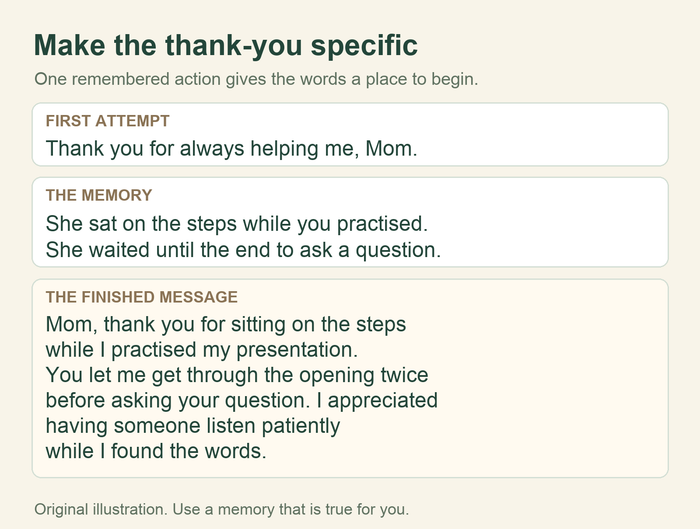
Decide what you want the card to say before filling the space with decorations. An anniversary card might recognise a shared habit. A birthday card might mention something you enjoy about the person and make a wish for their year. A thank-you card can name the action you appreciated.
Write the name, one clear thought, two or three short sentences and your closing. If you need much more space, send the longer note with the image. The card itself can hold the part you most want them to see.
A worked change from general thanks to a recognisable moment
General: “Happy anniversary. Thank you for everything.”
More personal: “Jo, I still notice the coffee at the door, our slow walks, and the way you wait for me.”
The second version gives Jo something to recognise. For your card, replace the coffee and walks with a real habit or moment. “You kept a seat for me at the back of the room” may say more than a bigger adjective, if it actually happened.
Then choose the heading. “Every ordinary day, with you” works with the example's quiet memories. Your own heading could be “Thanks for making room for me” or “Here's to more Saturday mornings.” Let the picture support that thought.
Give the message enough room
The example is a 900-by-1400-pixel portrait card. That is one usable design size, not a requirement for a messaging app or device. Keep the important words inside the border, leave space around them and use a clear font with a strong difference between the text and background.
As you change the words, look at the whole card again. A long name can make the greeting run past its margin. A new message can need different line breaks. Shorten or rearrange the words before making the lettering too small to read.
For the artwork, use your own drawing, a photograph you can share, or a permitted design asset. A simple picture connected to the memory can be enough. In this card, the mugs and window belong to the ordinary-day theme; there is no need to add a separate ornament for every sentence.
Keep the editable file; send the finished image
SVG: your editable copy
Keep this to change the name, wording, colours and drawing later in an editor that supports the file. Text appearance can depend on the fonts available in that editor, so check it when you open the file.
Use it for: making your own version and retaining the original layout.
PNG: the finished picture
Export the complete page to make a picture of the card. Open the exported file and inspect it before sending. The recipient sees the image you exported rather than separate editable text objects.
Use it for: sending the finished card as an image attachment or picture.
PDF: when a document is wanted
A PDF can hold a designed page, but the person needs to open that document to read it. Choose it if that is how they want to receive the card, and keep your editable SVG too.
Use it for: an agreed document delivery, rather than assuming every conversation needs a PDF.
You do not need an account-sharing or hosting promise to complete this gift. Keeping the editable file and exported image gives you your own copies. If you choose to send a link through a design service instead, check what the recipient can open and whether that link is intended for viewing or editing.
Build your own version and export a PNG
These steps follow Inkscape's documented text, SVG-saving and image-export workflow. The names and positions of controls can vary with the version you use. Use the app's export help if your screen differs; this guide does not promise the same interface on every machine.
-
Create your working page. In your drawing editor, make a portrait page. For this example, use 900 pixels wide by 1400 pixels high. Save your editable working design as an SVG with a clear name, such as
jo-anniversary-card.svg. -
Make a simple background and border. Draw a cream rectangle covering the page. Add an unfilled rounded rectangle inside it as the border. The example uses cream
#fff9f1, dark green#24473dfor the main words and softer green#76958afor the border. Keep about 75 pixels of space on either side of the text. - Arrange the picture. For the window, draw a pale blue rectangle, then add one vertical and one horizontal dividing line. Place two small rectangles below it for mugs, with a smaller unfilled rectangle beside each as a handle. A horizontal line below the mugs completes the sill. Leave a clear gap beneath the picture for your message. This uses ordinary shapes; your own illustration can be different.
- Add the greeting and your own message with the text tool. Put the name and occasion near the top, then the main thought in larger lettering. In this example the heading is 66 pixels and the message is 40 pixels; inspect your chosen font and device rather than treating those sizes as a rule. Replace the invented memory with your own, and add line breaks so the words stay inside the border. Put your closing beneath the message.
- Check the whole layout. Make sure the illustration and every line remain on the page. If a font changes when you open the file, choose an available font and check the spacing again. Keep enough space between the art and the message.
- Save the editable SVG. This is the copy you return to if you notice a spelling mistake or want another version.
- Open the image-export panel and choose the whole page. In Inkscape's guide this is the PNG export dialog. Select Page for the export area, rather than only the currently selected text or drawing. Choose PNG and a file name, then export.
- Open the exported PNG itself. Check the greeting, full message, signature, border and background. The cream rectangle in this example is part of the artwork, so the intended card background is included. Inspect your own output after any changes.
The project's PNG export guide explains the page, drawing and selection areas. Its SVG saving guide explains the editable formats.
Check the image on the phone or screen you expect the person to use. If they have to work hard to read the message, use fewer words, larger lettering or an accompanying text note. Sending a larger file does not make a crowded layout clearer, and a messaging service may handle the image differently from your editor.
Send the image with a complete note
Open the actual exported file once more, then attach that file in your message or email. A preview inside the editor can look finished while you still have not selected the exported image for sending.
A complete message to send with this example
I made you a small card for our anniversary. Open the image whenever you have a quiet moment. It is about the ordinary days I love sharing with you.
For email, a suitable subject for the invented example is A small anniversary card for you. Attach the exported PNG, paste the note into the email and confirm the attachment is the version with the right names.
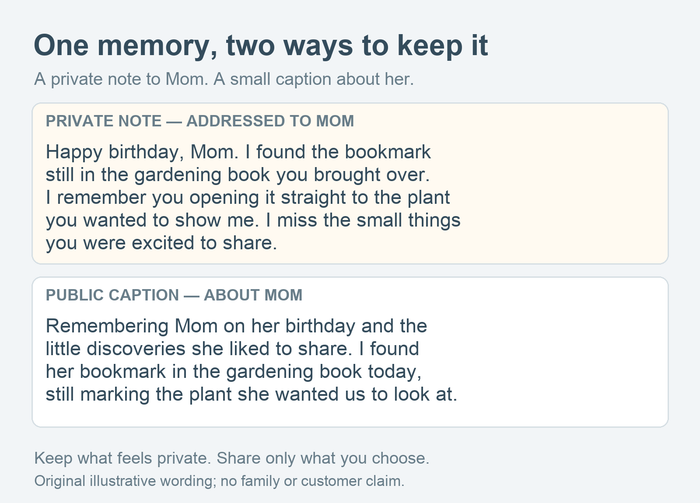
A private message suits a personal note. If you plan to post the card in a group or on a public profile, make sure the person would welcome the words and photograph being shared there. You can send the personal card privately and keep the public birthday or anniversary greeting shorter.
There is no need to ask for a filmed reaction. Let the person open it in their own time. Keep your copy so you can resend it if the attachment fails or they want to save it later.
When the file does not look right
- Only the picture or one sentence exported: return to the export panel and choose the full page area, then open the new file to check it.
- The name or message is cut off: move the text inside the page, adjust the line breaks and export again.
- The lettering changed in the SVG editor: choose an available font and recheck the layout before making the final image.
- The sent image is hard to read: try a clearer layout and send the exported file in the delivery mode your messaging app supports. Paste the complete note into the message as well, so the words remain easy to read.
- A shared link asks them to log in: check the service's viewing/share settings, or attach the finished image through your usual message or email route.
Would a song add something to this card?
The finished image can be the whole gift. A song adds another way to tell a longer story when there is something you want the person to hear. Keep the card's short message and send the finished listening link with it, so opening the picture still gives them a complete greeting.
If you want an original personal song, start the Songbond song questions. This card-making guide does not include a recording, physical card or music order. Use the actual song link supplied for your completed gift rather than treating the example names as your song brief.
For broader choices you can send over a screen, see digital gift ideas.
Questions about digital greeting cards
Do I send the SVG or the PNG?
Keep the SVG as your editable file. For the finished card, export the whole page as a PNG and check the actual file before attaching it. If the recipient specifically wants an editable file, agree that format with them.
Can I use this layout for a birthday or thank-you?
Yes. Change the heading, name, message and any drawing that no longer fits. Keep the words truthful and check the finished layout after editing. The anniversary example is one worked design, not a requirement for every occasion.
Does this card play a song?
The example is an image with a greeting. A listening link is a separate optional part of your message. Keep it easy to recognise and test it before sending.